ChargeUp – User Guide
This guide describes every control in the ChargeUp settings panel and explains the default behaviour.
Accessing the Settings
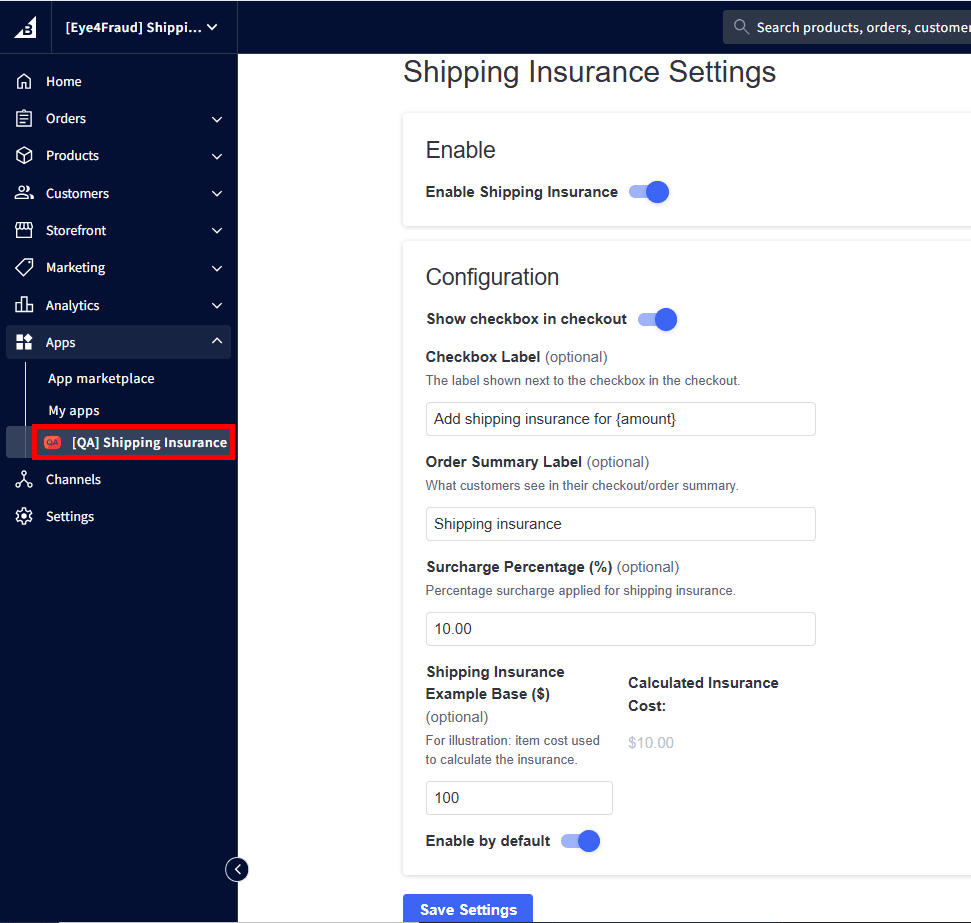
After app installation, its Settings page is automatically opened. This page can be accessed anytime by clicking the ChargeUp app in your Bigcommerce admin dashboard.
General Settings
Enable ChargeUp toggle
- Purpose: Turns the ChargeUp feature on or off for the store.
- Default: On.
- When Off: No surcharge amount is calculated or shown anywhere during checkout.
Show Checkbox in Checkout toggle
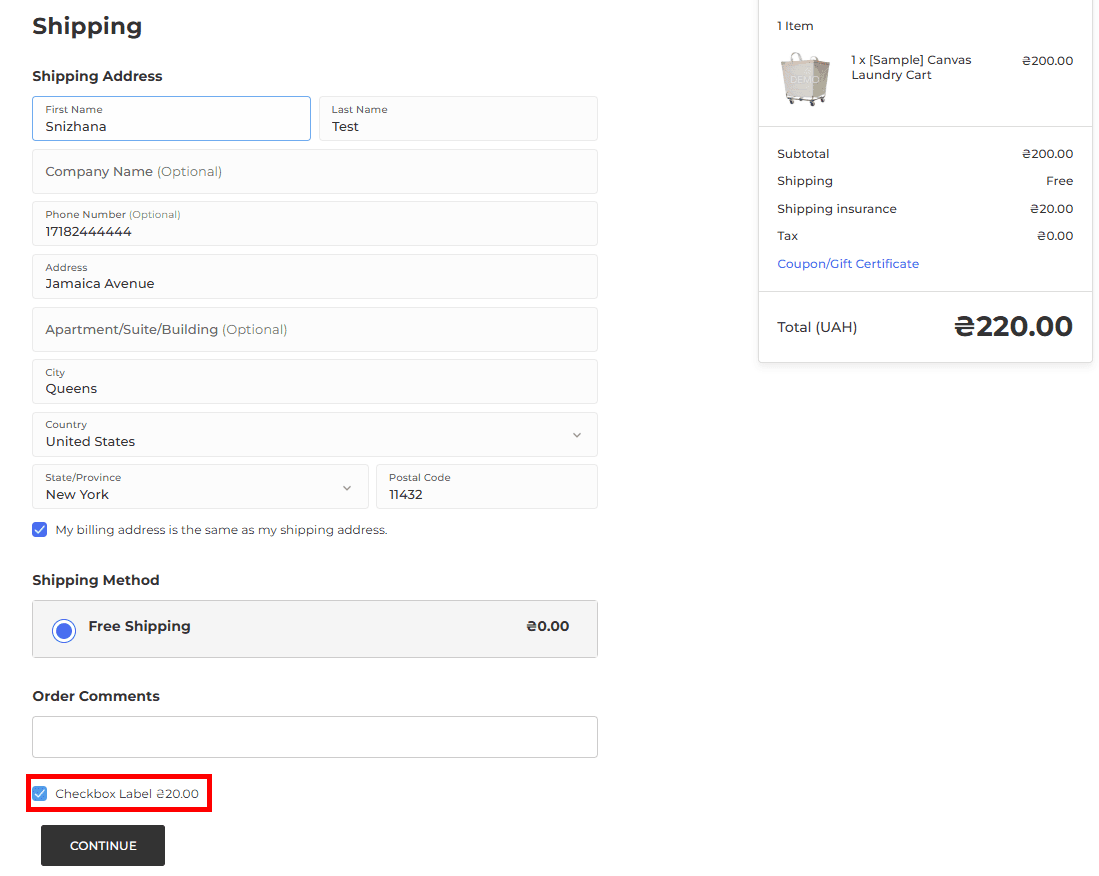
- Purpose: Controls whether customers see an opt‑in checkbox on the Shipping step of checkout.
- Default: On.
- Behaviour:
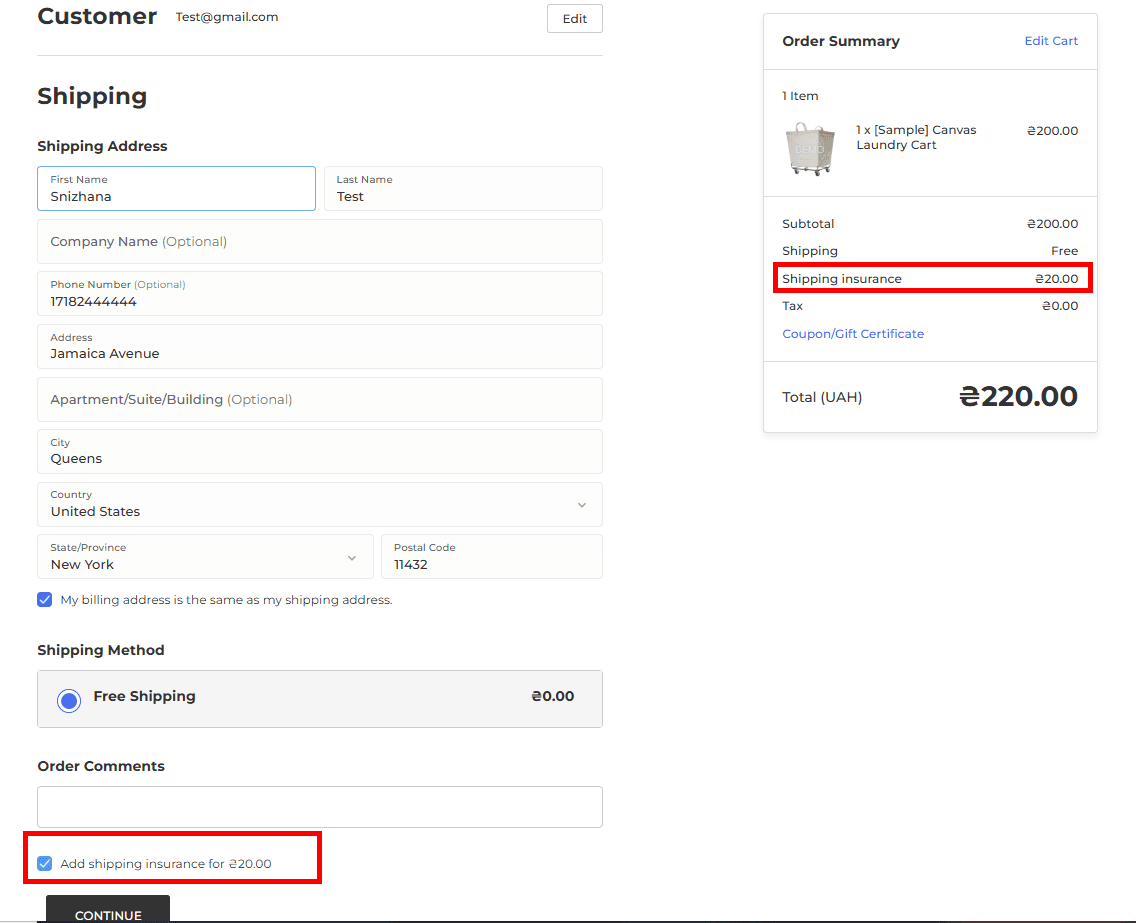
- On: A checkbox appears beside the text set in Checkbox Label on the Shipping step. Customers can check or uncheck it to include or remove insurance; the order summary updates accordingly.
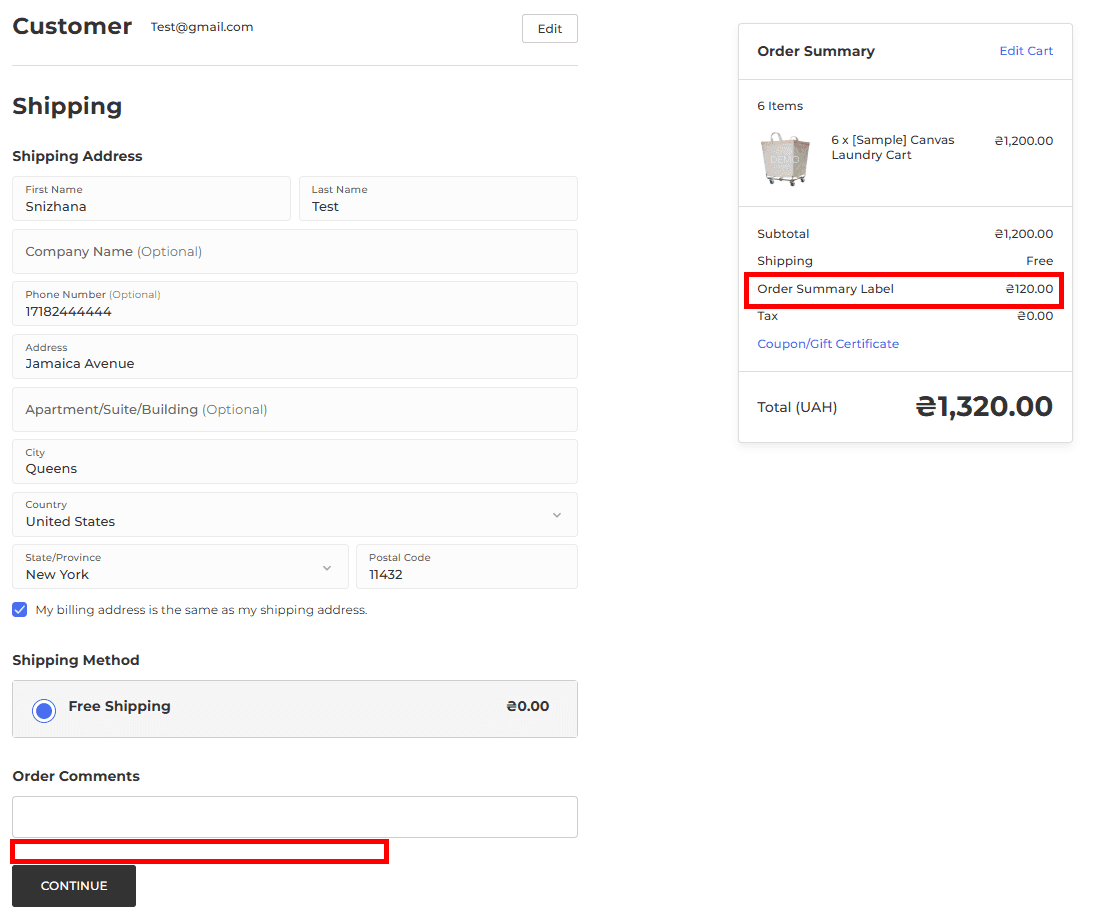
- Off: The checkbox is hidden. Surcharge is always applied, and the cost is displayed in the order summary.
Display Labels
Checkbox Label
- Text displayed next to the opt-in checkbox at the Shipping step. This label can be edited.
- Default value: “Add Shipping Insurance”.
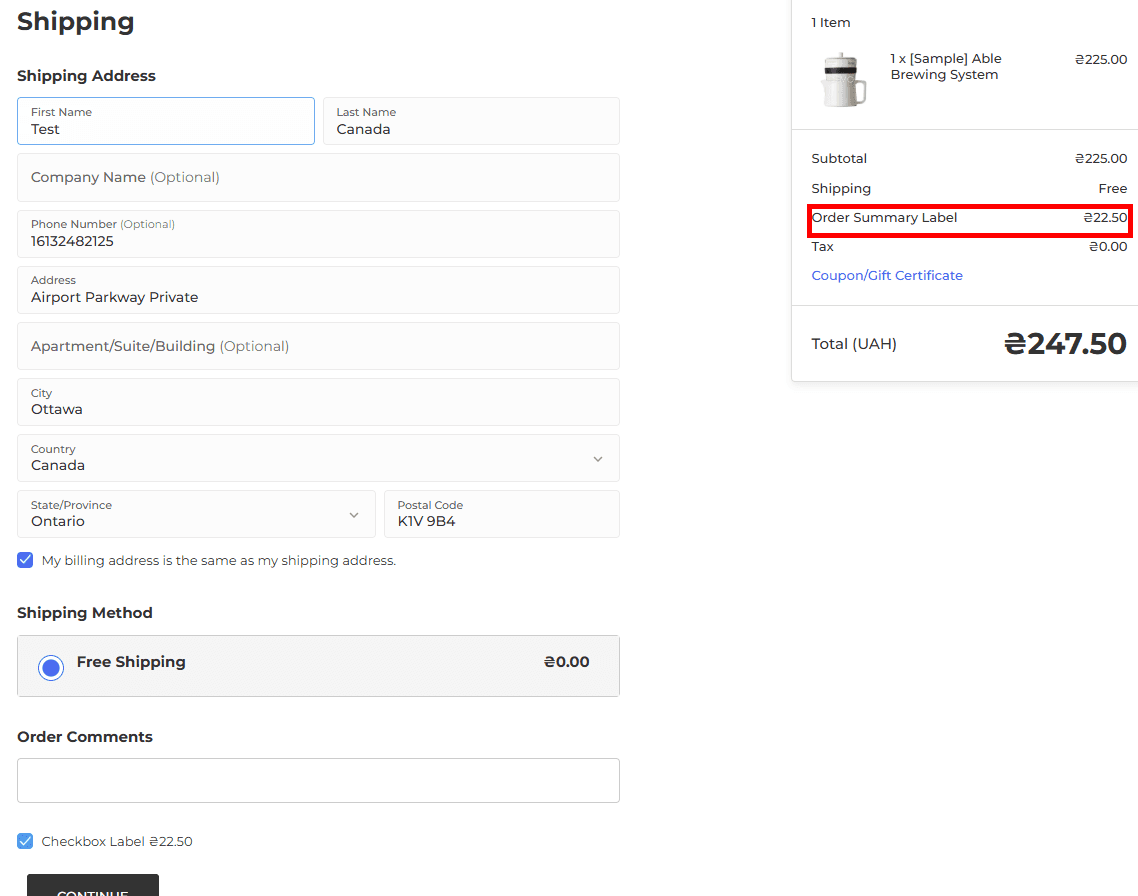
Order Summary Label
- Text shown for the insurance line in the order summary and on order details. This label can be edited.
- Default value: “Shipping Insurance”.
Pricing
Surcharge Percentage (%)
- Percentage applied to (cart subtotal + shipping cost) to calculate the surcharge fee.
- Range: 1 % – 100 %.
- Default: 10 %.
ChargeUp Example Base
- A field for entering an example order amount to preview the surcharge amount.
Calculated Insurance Cost
- Read‑only field that shows the surcharge amount for the Example Base using the current Surcharge %.
Saving Changes
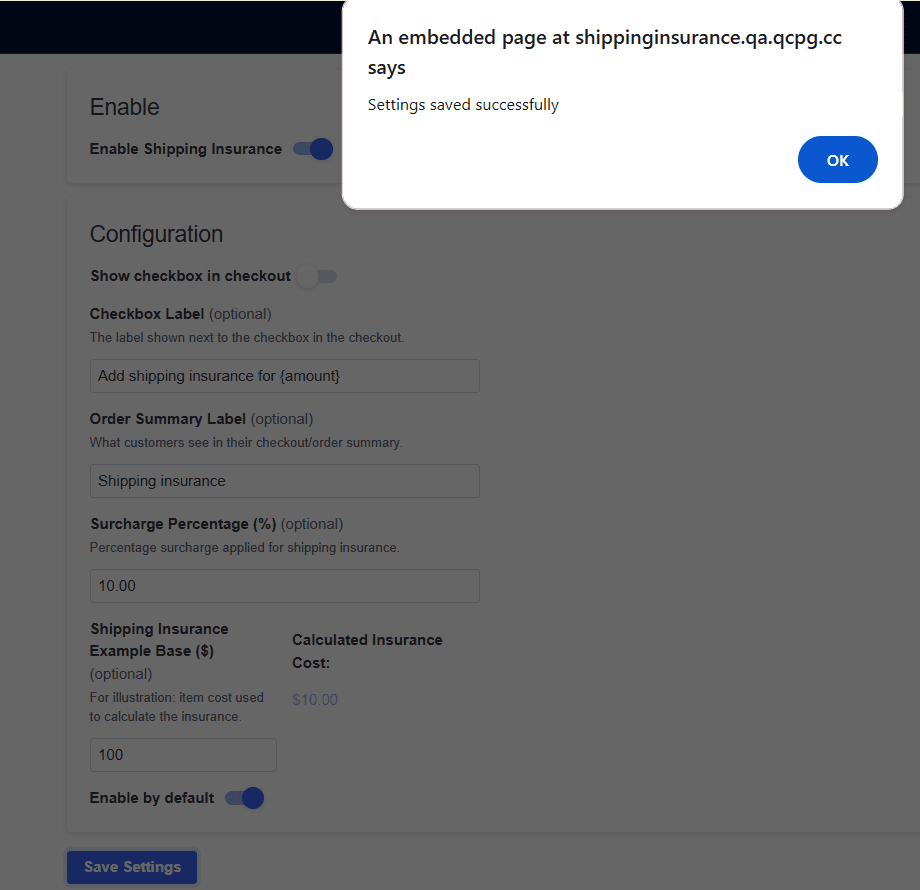
Click Save. A confirmation banner — “Settings saved successfully.” — appears to confirm that the new configuration is active.